In today’s fast-paced digital landscape, communication is paramount, and texting remains a cornerstone of our interactions. However, encountering the frustrating issue of your Android device being unable to connect to server SMS can impede critical communications. This guide addresses the common pitfalls that lead to connection problems, offering practical troubleshooting steps to get you back on track quickly. Whether you’re a business professional relying on SMS for client communication or a casual user wanting to stay connected with loved ones, resolving this issue is vital. By understanding the underlying causes and navigating through our comprehensive solutions, you can regain seamless messaging capabilities and ensure your messages get delivered. Dive in to explore effective strategies that will empower you to tackle this challenge confidently.
Diagnosing Connection Issues with Android SMS
can often feel daunting, yet understanding the core factors at play can illuminate pathways to resolution. Many users encounter the frustrating “Can’t Connect to Server” error, which could stem from a variety of issues ranging from network problems to misconfigured settings. Given that SMS functionality is integral to both personal communication and business operations, it’s essential to dissect these potential obstacles methodically.
First and foremost, the most frequent culprits behind SMS connectivity failures typically include network outages, incorrect APN settings, or issues related to the SMS gateway. Users should begin by verifying that the device has an active cellular connection and that mobile data is enabled. If the connection seems stable, the next step involves checking the Access Point Name (APN) settings, as these govern how the device communicates with the carrier’s network. Ensuring these settings align with the service provider’s specifications is crucial for SMS functionality.
Another common area for complications lies within the SMS application itself. Clearing the app’s cache and data can often rectify minor glitches. Users can do this by heading into the device’s settings, navigating to Apps, selecting the SMS app, and choosing the options to clear cache and data. Furthermore, keeping the SMS application updated ensures that any bugs contributing to connectivity issues are addressed promptly. If problems persist, it might be worthwhile to consider testing an alternative SMS application from the Google Play Store to see if that mitigates the problem.
By diligently assessing these areas, users can effectively troubleshoot and potentially resolve connection issues, thereby enhancing their SMS experience. Adopting a systematic approach to diagnosing these issues is not only practical but also empowers users to regain control over their communication channels.
Common Causes of “Can’t Connect to Server” Error
Many users experience the frustrating “Can’t Connect to Server” error when attempting to send or receive SMS messages. This issue can stem from various underlying causes, often complicating efficient communication for both personal and professional purposes. Understanding these common culprits can significantly enhance troubleshooting efforts and restore SMS functionality.
One prevalent cause is network connectivity issues. A stable cellular connection is vital for SMS transmission. Users should ensure that their phones are not in airplane mode, and that they are within a coverage area with adequate signal strength. Network outages or disturbances can also impact service, making it essential to check for any reported issues from the service provider. In some cases, temporarily disabling mobile data and then re-enabling it can resolve connectivity hiccups.
Another frequent issue arises from incorrect Access Point Name (APN) settings. APNs dictate how devices connect to the internet via their mobile carrier, and incorrect configurations can disrupt SMS services. Users should verify that their APN settings match those provided by their mobile network operator. This alignment helps the device communicate effectively with the carrier’s network, ensuring SMS messages are sent and received without issues.
Furthermore, problems within the SMS application itself can lead to connectivity errors. Application bugs, outdated software, or corrupted caches may hinder performance. Clearing the app’s cache and data can often alleviate these problems, as it resets the app and clears out any corrupted files. Regular updates are also crucial, as developers frequently issue patches that address known bugs and improve overall functionality.
By being aware of these common causes, users can take targeted actions toward resolving SMS connectivity issues, thereby improving their overall communication experience.
Step-by-Step Guide to Troubleshoot Android SMS
Resolving the frustrating “Can’t Connect to Server” issue with Android SMS messages can often be easier than it seems. Troubleshooting involves a series of systematic checks and configurations to ensure seamless communication. Here’s a step-by-step approach that can guide users through the process of diagnosing and rectifying SMS connectivity problems effectively.
1. Check Your Network Connection
Begin by ensuring that your device has a stable cellular connection. Verify that Airplane mode is off and that you’re not experiencing a service outage in your area. Test your network by trying to make a call or access mobile data. If you encounter issues, toggling the mobile data off and on can refresh your connection.
2. Validate APN Settings
Incorrect Access Point Name (APN) settings are a common culprit behind SMS connectivity issues. Check your APN configuration by navigating to Settings > Network & Internet > Mobile Network > Advanced > Access Point Names. Compare the settings with those provided by your mobile carrier to ensure they are accurately reflected. If changes are made, restart your device to apply the new settings.
3. Clear SMS App Cache and Data
Over time, application data can become corrupted, which may hinder SMS functionality. To clear the cache and data of your messaging app, go to Settings > Apps > [Your Messaging App] > Storage > Clear Cache. After clearing the cache, consider also selecting Clear Data, but be mindful that this may delete any stored messages.
4. Update Your SMS Application
Ensuring your SMS application is up to date is critical for optimal performance. Navigate to the Google Play Store, search for your messaging app, and check for any available updates. If updates are found, install them to ensure you have the latest features and bug fixes.
5. Restart the Device
Sometimes a simple reboot can resolve underlying processes that may be creating connectivity issues. Restart your device and attempt to send or receive SMS messages again.
6. Test with Alternative SMS Applications
If issues persist, consider testing a different SMS application. Apps like Textra or Google Messages can offer a fresh installation that might bypass any problems with your current messaging app. Download an alternative from the Google Play Store and set it as the default SMS app.
7. Contact Your Service Provider
If none of the previous steps have resolved your issue, it may be time to reach out to your mobile service provider. Prepare to provide them with a detailed description of the problem and mention any troubleshooting steps you have already taken. They can check for network outages, account issues, or other technical failures that might affect SMS delivery.
Taking these steps can systematically help you troubleshoot SMS connectivity issues, ensuring your messaging functionality is restored promptly. These practical solutions not only tackle immediate concerns but also foster a better understanding of how SMS technology operates within your mobile infrastructure.
Network Settings to Check for SMS Functionality
Ensuring that your network settings are properly configured is crucial for seamless SMS functionality on Android devices. A minor misconfiguration can lead to significant interruptions in messaging services, reflecting common frustrations such as the “Can’t Connect to Server” error. One important aspect to consider is the cellular network type. Depending on your mobile carrier, certain settings must align with their infrastructure to send and receive SMS effectively.
To optimize your SMS services, first, check that your device’s network is set to connect using the correct mobile data type. Navigate to your device settings and confirm that you are using either 4G LTE or 3G, as these are the most reliable for SMS delivery. Additionally, inspect any data-saving modes that could restrict background data usage; disabling such features may restore your messaging capabilities.
Access Point Name (APN) settings play a pivotal role in SMS functionality. These settings dictate how your device connects to the carrier’s network, and incorrect APN settings can prevent message delivery. Review your APN configurations by heading to Settings > Network & Internet > Mobile Network > Advanced > Access Point Names. Ensure that the APN settings match those recommended by your mobile provider. Incorrect values or missing parameters could result in failures in SMS transmission or receipt.
Network selection settings also require attention. Some devices allow users to select between automatic or manual network modes. If set to manual, ensure that you have selected the correct network compatible with your service provider. A mismatch could lead to lost messages or connectivity errors. Lastly, consider resetting your network settings entirely if persistent issues occur; this can often rectify misconfigurations that users may not immediately identify.
By thoroughly checking these network settings, you can significantly enhance your device’s SMS functionality, ensuring that your communications remain uninterrupted and reliable.
Understanding SMS Gateway Configurations
In the world of SMS communications, the gateway is a crucial component that facilitates the transfer of messages between mobile networks and external systems, such as applications and websites. A solid understanding of SMS gateway configurations can greatly enhance your ability to troubleshoot issues like the “Can’t Connect to Server” error commonly experienced on Android devices. This gateway acts as a bridge that not only forwards messages but also handles protocols, formats, and message routing, which are essential for delivering SMS reliably.
To ensure optimal configuration of your SMS gateway, it’s vital to start with the correct API endpoints. Depending on the service provider, there could be different settings required for sending or receiving messages. This includes various authentication methods, such as API keys or tokens. Make sure to reference your provider’s documentation to verify that your setup aligns with their specifications. Additionally, latency in message delivery can often be traced back to improper configurations in the gateway. Periodically testing your connections can help to identify where delays or failures occur, allowing for prompt adjustments.
Key Parameters to Consider
When configuring your SMS gateway, several key parameters should be taken into account:
- Message Types: Ensure that your gateway can handle both SMS and MMS if required, as some applications rely on multimedia messages.
- Number Routing: Configure the gateway to handle international numbers correctly, which may involve setting specific country codes or number formats.
- Delivery Receipts: Implement acknowledgment settings to track the success or failure of message deliveries, which can help in troubleshooting issues.
Furthermore, understanding the transport layer settings is also crucial, especially the use of HTTP, SMPP, or other protocols. The selection of a relevant protocol may depend on the volume of SMS you are handling; high-volume operations are often best served by SMPP, which provides faster throughput and lower latency.
Integrating comprehensive logging within the SMS gateway can also serve as an invaluable tool for diagnosing issues. By capturing detailed logs, you can trace the flow of messages, pinpoint where failures occur, and determine whether the issue lies within your application, the gateway setup, or the carrier network. Establishing systematic monitoring practices will lead to swift identification and resolution of any discrepancies that may arise.
To sum up, by mastering the configurations of your SMS gateway, not only can you mitigate issues related to connectivity and message delivery, but you can also enhance the overall effectiveness of your SMS communications. This knowledge translates directly to improved operational efficiency and customer satisfaction.
How to Clear Cache and Data for SMS Apps
Clearing the cache and data for SMS applications can often resolve connectivity issues, including the frustrating “Can’t Connect to Server” error on Android devices. This action can help eliminate any corrupted files or outdated settings that may be preventing your SMS app from functioning correctly. A well-maintained app environment is critical in ensuring seamless message delivery, especially in an era where timely communication can impact both personal and business interactions.
To clear the cache and data for your SMS application, follow these straightforward steps:
- Open Settings: Navigate to your device’s Settings app, typically represented by a gear icon on your home screen or app drawer.
- Applications: Scroll down and select “Apps” or “Application Manager” depending on your device.
- Select Your SMS App: In the list of applications, find and tap on your SMS application (e.g., Messages).
- Storage: Once inside the app’s information page, look for the “Storage” option and tap on it.
- Clear Cache and Data: You will see options for “Clear Cache” and “Clear Data.”
– Clear Cache: Tap this first to remove temporary files that may be causing issues.
– Clear Data: If the problem persists, tap this option. This will reset the app to its default state, potentially erasing any stored messages and settings. Be cautious, as you’ll lose any unsaved messages.
- Restart Your Device: After clearing the cache and data, it’s beneficial to restart your phone to refresh the system settings.
After completing these steps, your SMS app will behave as if it has just been installed, which can rectify underlying issues affecting connectivity. This method is particularly valuable for troubleshooting, allowing your device to reestablish a fresh connection with the messaging server, often resolving problems that stem from outdated data or settings.
Regularly performing this maintenance can contribute to enhancing the performance of your messaging apps, ensuring that you remain connected without interruptions. If the problem continues after attempting these steps, it may be wise to investigate other factors, such as network settings or contacting your service provider for further assistance.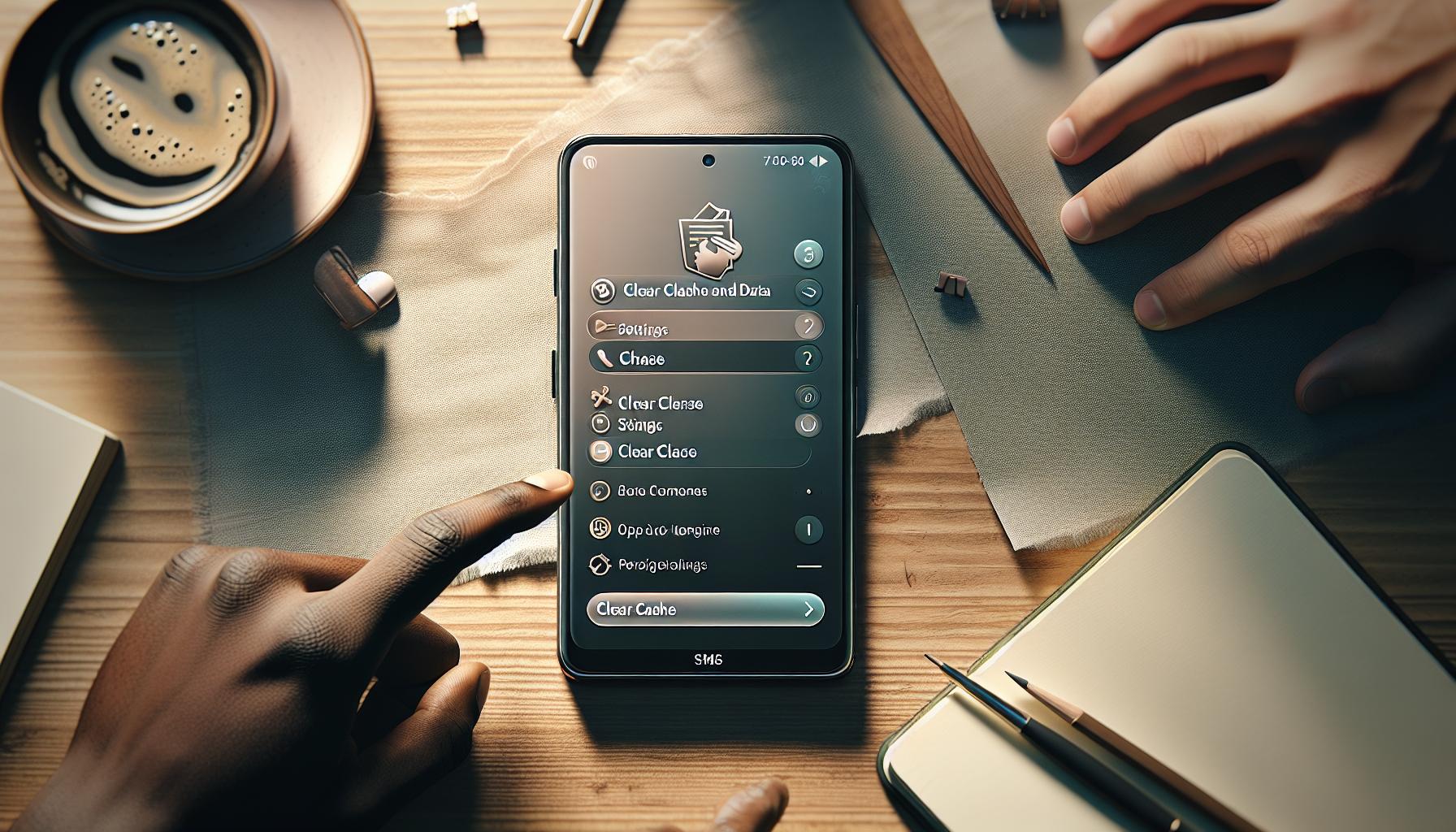
Configuring APN Settings for SMS Success
Configuring the Access Point Name (APN) settings on your Android device is crucial for ensuring SMS functionality operates seamlessly. A well-defined APN setting allows your device to communicate effectively with your carrier’s network, facilitating not only SMS functions but also data transmission. When these settings are incorrectly configured or missing, issues such as “Can’t Connect to Server” errors can arise, leading to delayed or failed message delivery.
To modify your APN settings, follow these steps:
- Access Settings: Open the Settings app on your Android device and scroll down to select “Network & Internet” or simply “Connections” depending on your device model.
- Mobile Network: Choose “Mobile Network” or “Cellular Network,” and look for options related to APN settings.
- Edit APN: Tap on “Access Point Names.” You may already see existing APNs listed. To add or modify an existing APN, select the appropriate option (usually a plus sign or the APN to edit).
- Input Settings: Configure the following fields, ensuring you gather the appropriate details from your carrier:
- Name: A descriptive name for the APN.
- APN: This is the most crucial entry; it specifies the gateway for your network.
- Username and Password: If applicable; most have these fields populated.
- MMS and SMS settings: These might include specific SMS server addresses, ports, or other relevant settings.
- Save and Activate: After entering the correct information, save your settings. Ensure you select this APN to be active if there are multiple APNs listed.
Once your APN settings are correctly configured, perform a soft reset of your device. This ensures your mobile radio reconnects with the updated settings. Checking your SMS functionality may involve sending a test message to confirm that the connection to the server is restored. In some cases, if the errors persist, you may want to consult your carrier’s official website or customer support for additional APN settings specific to SMS and data use.
Having the right APN settings not only enhances SMS reliability but also improves overall mobile data performance. Regularly updating and verifying these configurations can prevent future connectivity issues, ensuring your communication systems remain robust-vital in an interconnected world where timely messaging can significantly impact both personal and business communications.
Testing Connectivity: Ping and Trace Route Basics
Testing the connectivity of your Android device when faced with SMS issues can bring clarity to whether problems are on the device side or within the network environment. An effective method to diagnose these connectivity problems involves using simple tools like Ping and Trace Route (Tracert in Windows). These diagnostic utilities can help assess the communication path between your mobile device and the SMS server, offering essential insights for troubleshooting “Can’t Connect to Server” errors.
Ping is a basic command line utility that checks the status of a network connection. By sending a request to a specified IP address, Ping can quickly tell you if a connection exists and how long it takes to receive a response. You can run the Ping command from an Android terminal emulator or a connected computer. For example, open a command prompt and type `ping
Trace Route complements Ping by providing a complete path of how packets travel from one point to another. This command reveals all the routers that the data passes through, ultimately leading to the destination server. By executing `tracert
Utilizing these tools not only clarifies connectivity issues tied to SMS functionality, but they also bridge the technical aspects of network diagnostics with the operational needs of business communications. For example, recognizing that delays originate from a specific hop could lead to focused inquiries with your IT department or a network engineer, ensuring your SMS systems remain efficient and reliable. Effective communication through SMS is vital; therefore, mastering these tests can empower you to swiftly address issues and sustain robust messaging for both personal and business applications.
Reinstalling or Updating SMS Applications
When SMS applications fail to connect to the server, reinstalling or updating the app can often resolve issues quickly and effectively. It’s not uncommon for software bugs or outdated versions to hamper performance, especially when the app requires stable connectivity to function properly in sending and receiving messages. Ensuring that your SMS application is running the latest version not only provides access to new features but also incorporates necessary security updates and bug fixes that can enhance overall usability and connectivity.
Start by verifying whether the app has available updates. On most Android devices, this can be done by visiting the Google Play Store, searching for your SMS application, and checking its update status. If an update is available, simply click ‘Update’ to install the latest version. For troubleshooting purposes, here’s how to reinstall the application:
- Backup Important Messages: Before uninstalling, consider saving any important messages or information. This may be done through email or cloud-based services.
- Uninstall the Application: Navigate to your device Settings, select ‘Apps’, find your SMS application, and tap ‘Uninstall’.
- Reboot Your Device: Restart your phone to ensure that temporary files and processes are cleared.
- Reinstall the Application: Return to the Google Play Store, search for your SMS application, and tap ‘Install’ to download the latest version.
Check for Permissions and Settings
After reinstalling, check that the app has all necessary permissions enabled, such as access to SMS, Contacts, and Phone capabilities. You can do this through the app settings in your phone settings menu:
- Go back to ‘Settings’
- Select ‘Apps’
- Choose your SMS application
- Tap on ‘Permissions’ to manage what the app can access
Proper permissions ensure that the SMS app can function effectively and communicate with network servers. If the problem persists after updating or reinstalling, additional troubleshooting steps such as checking network connectivity or configuring APN settings may be necessary to establish a reliable connection for SMS functionality.
Reinstalling or updating your SMS application can significantly affect its performance, making it a vital first step in troubleshooting connectivity issues, and helping maintain seamless communication for both personal and business needs.
Advanced Server Settings for SMS Reliability
To ensure the reliability of SMS communications, configuring advanced server settings is crucial. These configurations can significantly affect the ability to send and receive messages and ultimately influence user satisfaction and business operations. A well-tuned SMS server setup not only improves performance but also enhances security and compliance with regulatory frameworks.
One key aspect of advanced server settings involves configuring your SMS gateway. The gateway acts as a bridge between your application and the mobile network, facilitating message delivery. Ensure you set the correct Protocol (such as SMPP or HTTP) based on your service provider’s specifications, as this dictates how your server communicates with the network. Also, make sure that you provide the appropriate API credentials that authenticate your requests. Always use a secure connection (HTTPS) to encrypt your data during transmission, thereby mitigating risks associated with data breaches.
Furthermore, setting the correct delivery reports on your server is essential for understanding message status. These reports can help identify whether messages are being delivered successfully and at what stage failures occur-be it during sending, delivery, or network congestion. Configuring your server to handle these reports can also automate retries for undelivered messages based on predefined logic, ensuring higher reliability in communications.
In terms of managing bulk messaging, it’s vital to configure throttling settings. Throttling allows you to control the rate of outgoing messages, preventing overload on the gateway which could lead to dropped messages or degradation of service. Check if your provider has limits on message throughput, and adjust your settings accordingly to comply with these caps while maintaining optimal performance.
Lastly, maintaining a robust monitoring system is essential. Implement logging mechanisms to track communication between your server and the SMS gateway. Key metrics to track include the number of messages sent, delivery rates, and error rates. Using this data not only aids in troubleshooting during connectivity issues but also informs strategic decisions-such as when to scale services during peak traffic times.
By carefully managing these advanced server settings, you can enhance the reliability and efficiency of SMS communications, ensuring that your messages reach their recipients promptly and securely.
Contacting Your Service Provider: What to Ask
Reaching out to your service provider can be a pivotal step in resolving SMS connectivity issues. Knowing the right questions to ask not only saves time but can also highlight potential pitfalls in your current setup. Begin with clarifying the service provider’s SMS gateway compatibility with your current infrastructure. Inquire about specific protocols, such as SMPP or HTTP, that their platform supports and whether any extra configuration is necessary to ensure seamless integration.
It’s essential to discuss any reported outages or network stability issues that could be affecting your message delivery. Ask if there have been recent changes in their system that might impact your service, such as updates to APIs or alterations in message routing protocols. Additionally, verify if there are limits on the number of messages you can send concurrently, as exceeding these thresholds can lead to delivery failures.
A crucial aspect of troubleshooting is understanding your account status. Confirm that your account is in good standing and that all necessary permissions are granted for sending SMS. This includes ensuring that your API keys are correct and active. If errors persist, request specific error codes or logs from your service provider, which can provide deeper insights into where the failure occurs in the message delivery process.
Finally, don’t hesitate to ask about monitoring tools they offer. Many service providers have dashboards that can give you real-time analytics and alerts on message status and delivery reports. Having access to this information can empower you to diagnose issues more effectively and enhance your overall SMS strategy. By coming prepared with these targeted questions, you can expedite the resolution process and reinforce your SMS business communications.
Exploring Alternative SMS Applications for Android
Exploring the landscape of SMS applications can be crucial, especially when traditional methods encounter connectivity issues. Many users may find themselves in situations where default SMS services fail to function correctly, prompting the need for alternative solutions. A variety of third-party SMS applications offer enhanced features and improved connectivity options, making them ideal replacements or supplements to standard Android messaging apps.
One popular option is Textra SMS, which is highly customizable and user-friendly. Users can personalize the interface with themes, bubble colors, andfont choices, enhancing the messaging experience. Textra also includes features such as scheduled SMS, quick replies, and integration with a variety of media types. These features ensure that tailoring communication is efficient, which can be especially helpful in a business context where timely responses are critical.
Another robust alternative is Pulse SMS, which offers extensive cross-device functionality. This app connects seamlessly with web browsers, allowing users to send and receive SMS or MMS messages from their computers. The multi-platform feature can be particularly beneficial for businesses and professionals who manage high volumes of communication and require flexibility in accessing messages. Pulse SMS also prioritizes user privacy with end-to-end encryption, a valuable feature for protecting sensitive information.
When considering investment in alternative SMS applications, users should evaluate their specific needs, such as integration capabilities with existing systems, security features, and user experience. Questions to consider may include:
- What functionalities are critical for my messaging needs?
- Does the application support bulk messaging, which can enhance outreach efforts?
- What types of security measures are implemented to safeguard communication?
- Can the app be integrated with existing tools and systems in use?
Properly assessing these factors can lead to selecting an SMS application that not only resolves connectivity issues but also adds value to communication strategies. By leveraging the strengths of these alternatives, users can enhance their overall SMS experience, ensuring that connectivity challenges are effectively surmounted and business objectives are met with clarity and precision.
Frequently asked questions
Q: Why does my Android SMS show “Can’t Connect to Server”?
A: The “Can’t Connect to Server” error in Android SMS typically occurs due to network issues, incorrect APN settings, or problems with the SMS application itself. Checking your internet connection, verifying APN configurations, and ensuring the SMS app is updated can help resolve this issue.
Q: How do I fix server connection issues for Android SMS?
A: To fix server connection issues for Android SMS, start by checking your mobile network settings, clearing the SMS app cache, and ensuring correct APN settings. If problems persist, consider reinstalling the SMS app or testing different messaging applications from the Play Store.
Q: What should I do if my SMS can’t send messages due to server errors?
A: If your SMS won’t send due to server errors, first restart your device and check your signal strength. Then, ensure your network settings (APN) are correctly configured. If the issue continues, contacting your service provider for assistance is recommended.
Q: Does clearing my SMS app cache fix connection problems?
A: Yes, clearing the cache of your SMS app can fix connection problems as it removes temporary data that might be causing issues. Go to Settings > Apps > [Your SMS App] > Storage, and select “Clear Cache” to refresh the app’s functionality.
Q: Are there alternative SMS apps if I can’t connect to my current one?
A: Yes, there are several alternative SMS applications available, such as Textra, Google Messages, and Pulse SMS. These apps often have additional features and may not experience the same connection issues as your default SMS application.
Q: How can I check if my APN settings are correct?
A: To check your APN settings, go to Settings > Network & Internet > Mobile Network > Advanced > Access Point Names. Compare your settings with those provided by your mobile carrier to ensure they match. Incorrect settings can impede SMS functionality.
Q: Why is my Android SMS not receiving messages?
A: If your Android SMS isn’t receiving messages, it may be due to network issues, disabled SMS service, or incorrect settings. Ensure that your phone is on the correct network mode, and check if SMS services are enabled with your mobile provider.
Q: How can I test my device’s connectivity for SMS issues?
A: To test your device’s connectivity for SMS issues, use the ping command via a terminal or a network diagnostics app. This can help you determine if your device can reach your carrier’s SMS gateway, identifying connection failures.
Wrapping Up
If you’re still facing issues with connecting to the server for Android SMS, don’t hesitate to revisit our troubleshooting guide to ensure you’ve covered all the potential fixes. Remember, timely action is key-getting back to seamless messaging can make a significant impact on your communication flow. Also, check our articles on optimizing SMS settings and understanding SMS gateways for deeper insights and enhanced functionality.
For ongoing support, subscribe to our newsletter for the latest updates or join our community discussions to share your experiences and tips. Want to explore advanced topics? Our comprehensive guides on API integration and server configurations can empower you to unlock the full potential of SMS technology for your business needs. Let’s keep your messaging streamlined-your effective communication is just a few clicks away!